
How to Categorize Data in Excel: 3 Ways (Formulas, Lookup Tables and AI)

Bank transactions into budget categories, products into your catalogue, support tickets into teams: categorizing is one of the most common jobs in a spreadsheet. The best way to categorize data in Excel depends on how tidy your data is. This guide covers three methods, from the simplest to the smartest, with formulas you can copy.
| Method | Best when | Weak spot |
|---|---|---|
| IF + SEARCH | A few categories with obvious keywords | Gets long and brittle fast |
| Keyword table + XLOOKUP | Values repeat or contain known keywords | Misses anything not in the table |
| AI.CHOICE | Messy, free-form text | Uses AI calls, so check a sample |
Method 1: IF and SEARCH keyword rules
Say column A holds bank transactions like “UBER *TRIP”, “Starbucks #1234” and “Amazon Marketplace”. You can test each one for a keyword and return a category:
=IF(ISNUMBER(SEARCH("uber";A2));"Travel";IF(ISNUMBER(SEARCH("starbucks";A2));"Food & drink";"Other"))In Excel 365 and 2021, IFS reads a little more cleanly:
=IFS(ISNUMBER(SEARCH("uber";A2));"Travel";ISNUMBER(SEARCH("starbucks";A2));"Food & drink";TRUE;"Other")This works well for three to five categories. Beyond that, every new keyword means editing a long formula, and it’s easy to break.
Method 2: Categorize data with a keyword table and XLOOKUP
Keep the rules in a table instead of inside the formula. On a sheet named Rules, put keywords in column A and their categories in column B:
| Keyword (A) | Category (B) |
|---|---|
| uber | Travel |
| lyft | Travel |
| starbucks | Food & drink |
| amazon | Shopping |
Then find which keyword appears in each transaction (Excel 365 or 2021):
=XLOOKUP(TRUE; ISNUMBER(SEARCH(Rules!$A$2:$A$50; A2)); Rules!$B$2:$B$50; "Other")Now adding a rule means adding a row, not rewriting a formula. If your values match exactly, such as product codes, a plain lookup is enough:
=XLOOKUP(A2; Rules!A:A; Rules!B:B; "Other")The weak spot is variation. “Amzn Mktp”, “AMAZON.COM*2K4” and “Prime Video” each need their own keyword, and anything new lands in Other until you add a rule.
Method 3: Categorize data in Excel with AI (AI.CHOICE)
When the text is messy, or the category depends on meaning rather than a keyword, let AI read it. TwistlyCells adds AI.CHOICE to Excel. It picks the best match for each row from your own list of categories, and it only ever returns a label from that list.
Step 1: Install TwistlyCells
Add the add-in from Microsoft AppSource. It works in Excel for Windows, Mac and the web, and the Free plan includes 100 AI calls.
Step 2: Write the formula with your categories
List the categories straight in the formula:
=AI.CHOICE(A2; "Travel, Food & drink, Shopping, Subscriptions, Other")Or keep them in a range, so you can edit the list in one place:
=AI.CHOICE(A2; Categories!$A$2:$A$10)Step 3: Fill down and check a sample
Drag the formula down the column. Here’s how it handles text that keyword rules struggle with:
| Transaction (A) | Category (B) |
|---|---|
| UBER *TRIP HELP.UBER.COM | Travel |
| SQ *BLUE BOTTLE COFFEE | Food & drink |
| AMZN Mktp US*2K4 | Shopping |
| NETFLIX.COM | Subscriptions |
| Adobe *Creative Cloud | Subscriptions |
Because every answer comes from your list, the column is clean enough for a pivot table or SUMIF right away. For example, total spend on travel, with amounts in column C:
=SUMIF(B:B; "Travel"; C:C)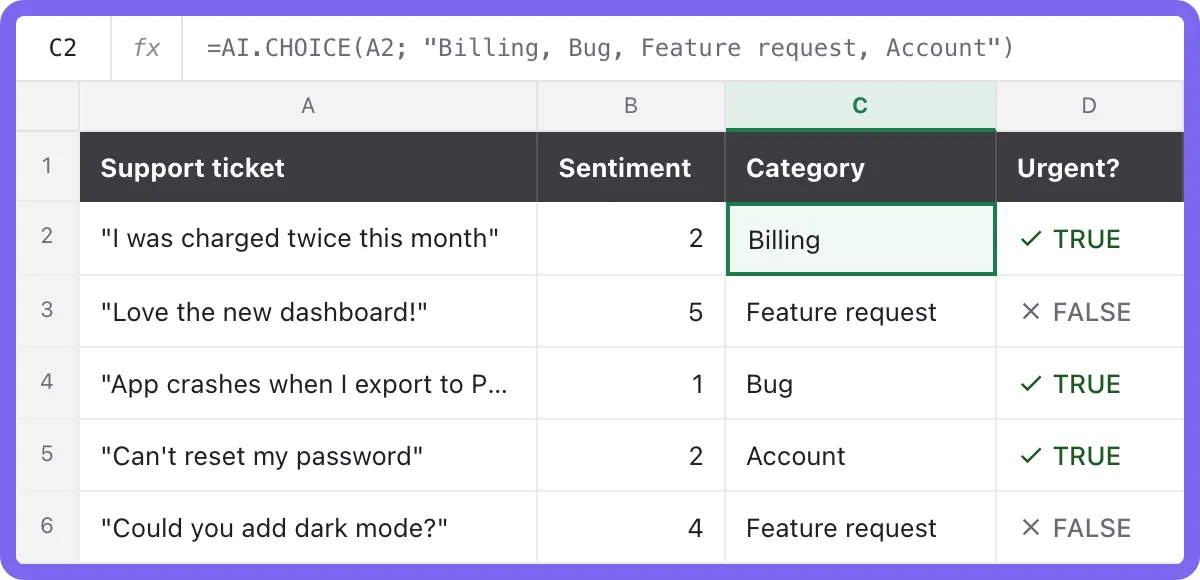
Combine methods: rules first, AI for the rest
On big sheets, use your keyword table for the rows it recognizes and send only the leftovers to AI. The AI formula only runs for rows the rules didn’t match, which saves calls:
=LET(r; XLOOKUP(TRUE; ISNUMBER(SEARCH(Rules!$A$2:$A$50; A2)); Rules!$B$2:$B$50; ""); IF(r<>""; r; AI.CHOICE(A2; Categories!$A$2:$A$10)))Tips to categorize data in Excel cleanly
- Make categories distinct. “Software” and “Subscriptions” overlap. Pick one, or define each clearly.
- Always include Other. It gives unusual rows somewhere to go instead of being forced into the wrong bucket.
- Test on 20 rows first, then fill the rest.
- Freeze the results. AI formulas recalculate with the sheet and each run costs a call. When you’re happy, replace the formulas with their values.
Faster categorizing with Jev
On the Free and Starter plans, AI.CHOICE runs on TypeSafe’s Jev, a decision model built for row-by-row labelling. It’s fast and cheap enough to run down long columns. Learn more in Jev in Excel and What is Jev?, or use the same formula for sentiment analysis in Excel.
Frequently asked questions
How do I categorize data in Excel automatically?
Use a keyword table with XLOOKUP for predictable values, or an AI formula like AI.CHOICE for messy text. Both fill a whole column once you drag the formula down.
Can Excel categorize text based on keywords?
Yes. Combine SEARCH with IF, IFS or XLOOKUP, as shown in methods 1 and 2.
How many categories can I use?
With formulas, as many as you can maintain. With AI.CHOICE, keep the list focused. A short list of clearly different categories gives the most consistent results.