
How to Do Sentiment Analysis in Excel (No Code, No Python)

You have hundreds of reviews, survey answers or support tickets, and you want to know how people feel. Reading every row takes hours, and Excel has no built-in sentiment function. The good news: you can do sentiment analysis in Excel without Python or any code. Here are two ways, a quick keyword formula and an AI formula that actually understands the text.
What is sentiment analysis?
Sentiment analysis labels each piece of text by the feeling it expresses, usually positive, neutral or negative. Once every row has a label, you can count them, track them over time and find out what’s behind the complaints.
Method 1: Keyword formulas (free, but rough)
You can approximate sentiment by searching each row for positive and negative words:
=IF(ISNUMBER(SEARCH("love";A2));"Positive";IF(ISNUMBER(SEARCH("broken";A2));"Negative";"Neutral"))It’s free and works offline, but it breaks quickly on real text:
- “Not bad at all” contains “bad”, so it’s labelled Negative.
- Sarcasm like “Great, it crashed again” is labelled Positive.
- You have to build and maintain a long word list.
- Mixed reviews get whichever word the formula happens to check first.
Use keywords for a rough first pass on short, simple text. For anything you’ll make decisions on, use AI.
Method 2: AI sentiment analysis in Excel with AI.CHOICE
TwistlyCells adds AI formulas to Excel. AI.CHOICE reads each row and picks the best label from a list you give it. Every answer is one of your labels, spelled exactly the same way, so the column is ready to count and chart.
Step 1: Install TwistlyCells
Add the add-in from Microsoft AppSource. It works in Excel for Windows, Mac and the web, and the Free plan includes 100 AI calls to try it.
Step 2: Put your text in one column
For example, reviews in column A starting at A2, with a header in A1. Leave column B empty for the results.
Step 3: Add the formula
In B2, type:
=AI.CHOICE(A2; "Positive, Neutral, Negative")Press Enter, then drag the formula down the column. TwistlyCells works through the rows in parallel batches, so a long column fills in waves. Here’s what the results look like:
| Review (A) | Sentiment (B) |
|---|---|
| “Great quality and fast shipping. Very satisfied.” | Positive |
| “It’s okay, a bit slow to arrive.” | Neutral |
| “Stopped working after a week.” | Negative |
| “Not bad at all for the price.” | Positive |
Notice the last row. A keyword formula would have called it Negative because of the word “bad”. The AI reads the whole sentence.
Step 4: Summarize the results
Count each label with COUNTIF:
=COUNTIF(B:B; "Positive")Or work out the share of positive reviews:
=COUNTIF(B2:B500; "Positive") / COUNTA(B2:B500)From there, a pivot table or a simple bar chart shows the split at a glance. If you want a written summary too, see AI data analysis in Excel.
Go beyond positive and negative
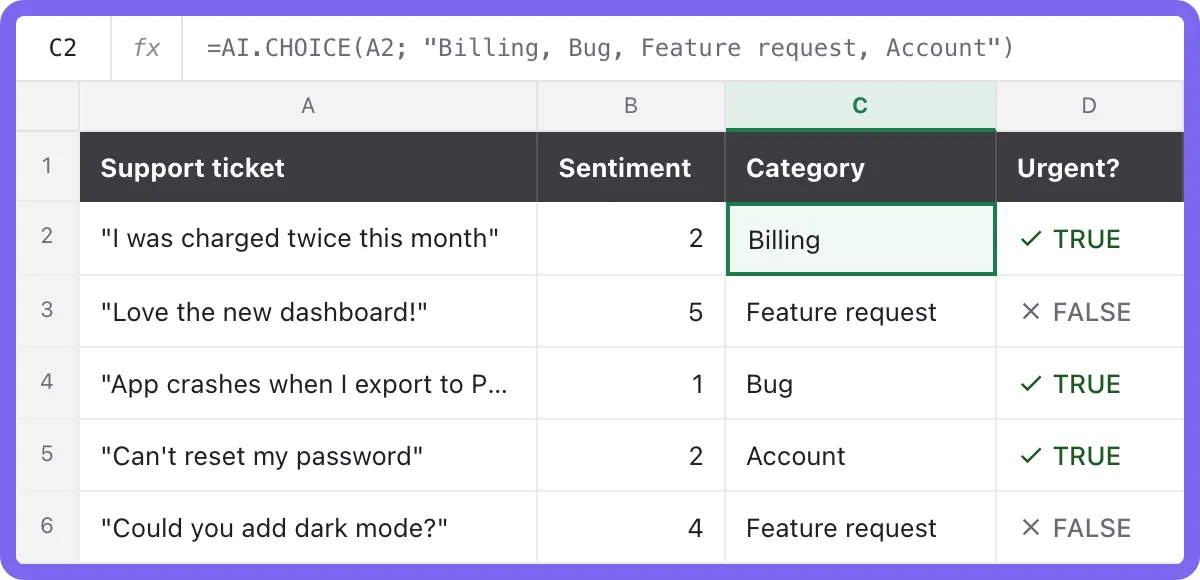
Because you choose the labels, you’re not limited to three:
- Emotions: “Happy, Frustrated, Confused, Angry”
- Topic and feeling in one step: “Positive about product, Negative about product, Positive about delivery, Negative about delivery”
- Urgency: “Needs a reply today, Can wait”
Keep labels short and clearly different from each other. Overlapping labels like “Unhappy” and “Negative” make the results less consistent.
Tips for accurate results
- Test on 20 rows first. Check the labels by hand before you fill the whole column.
- Freeze finished results. AI formulas run again whenever Excel recalculates, and each run costs another call. Once a column looks right, replace the formulas with their values.
- Clean the text. Remove signatures, order numbers and quoted replies so the model reads only the customer’s words.
- Spot-check hard cases. Sarcasm and mixed reviews are still the trickiest rows for any method.
Faster sentiment analysis with Jev
On the Free and Starter plans, AI.CHOICE runs on TypeSafe’s Jev, a decision model built for exactly this kind of row-by-row labelling. It’s much faster and cheaper than a chat model on long columns. A new AI.SCORE formula is coming soon too. It will rate each row on a scale, such as 1 to 5, so you can average sentiment instead of just counting labels:
=AI.SCORE(A2; "How positive is this review?"; 5)Read more in Jev in Excel or What is Jev?
Frequently asked questions
Does Excel have a built-in sentiment analysis function?
No. Excel has no native formula for sentiment. You can approximate it with keyword formulas or use an add-in such as TwistlyCells.
Can I do sentiment analysis in Excel without Python?
Yes. Both methods in this guide work with ordinary Excel formulas. No code, scripts or exports are needed.
How accurate is AI sentiment analysis?
It’s far more reliable than keyword matching on real-world text, because it reads the whole sentence. Still, check a sample, especially for sarcasm and mixed reviews.
How many rows can I analyze?
As many as your plan’s AI calls allow. Each row uses one call. See pricing for the allowance on each plan.